2. Connect a second control plane
This section adds a second kind cluster to the Hub you installed in
part one, installs
hub-connector in it, and registers it with your running Hub.
Create the second cluster
Create a second kind cluster. kind attaches it to the same kind Docker network
as hub-quickstart, so the two clusters' nodes can reach each other.
kind create cluster --name hub-quickstart-extra
Route the Hub address to the Hub cluster
A production install gives the Hub a hostname every cluster resolves. This step exists only because both clusters run on your laptop.
The connector reaches the Hub at the same HTTPS address your browser uses,
https://hub.127.0.0.1.nip.io:8443, because the Hub's tokens name that address
as their issuer. Inside the second cluster, that name resolves to the Pod
itself. Point it at the Hub cluster instead.
First, create a Service in the second cluster that forwards port 8443 to the
Hub node's gateway port 30443 over the kind network:
HUB_NODE_IP=$(docker inspect hub-quickstart-control-plane \
  --format '{{.NetworkSettings.Networks.kind.IPAddress}}')

kubectl --context kind-hub-quickstart-extra create namespace hub

kubectl --context kind-hub-quickstart-extra -n hub apply -f - <<EOF
apiVersion: v1
kind: Service
metadata:
  name: hub-gateway
spec:
  ports:
    - name: https
      port: 8443
---
apiVersion: discovery.k8s.io/v1
kind: EndpointSlice
metadata:
  name: hub-gateway
  labels:
    kubernetes.io/service-name: hub-gateway
addressType: IPv4
ports:
  - name: https
    port: 30443
endpoints:
  - addresses:
      - "$HUB_NODE_IP"
EOF
Next, add a CoreDNS rule that resolves the Hub hostname to that Service. This
replaces kind's default CoreDNS configuration with the same configuration plus
one rewrite line:
kubectl --context kind-hub-quickstart-extra -n kube-system replace -f - <<'EOF'
apiVersion: v1
kind: ConfigMap
metadata:
  name: coredns
  namespace: kube-system
data:
  Corefile: |
    .:53 {
        errors
        health {
           lameduck 5s
        }
        ready
        rewrite name exact hub.127.0.0.1.nip.io hub-gateway.hub.svc.cluster.local answer auto
        kubernetes cluster.local in-addr.arpa ip6.arpa {
           pods insecure
           fallthrough in-addr.arpa ip6.arpa
           ttl 30
        }
        prometheus :9153
        forward . /etc/resolv.conf {
           max_concurrent 1000
        }
        cache 30 {
           disable success cluster.local
           disable denial cluster.local
        }
        loop
        reload
        loadbalance
    }
EOF

kubectl --context kind-hub-quickstart-extra -n kube-system rollout restart deployment coredns
kubectl --context kind-hub-quickstart-extra -n kube-system rollout status deployment coredns
Trust the demo certificate
The connector only talks to the Hub over HTTPS and verifies its certificate. Copy the demo gateway's self-signed certificate into the second cluster:
kubectl --context kind-hub-quickstart -n hub get secret hub-demo-gateway-tls \
  -o jsonpath='{.data.tls\.crt}' | base64 --decode > hub-ca.crt

kubectl --context kind-hub-quickstart-extra -n hub create configmap hub-ca \
  --from-file=ca.crt=hub-ca.crt
Only the certificate leaves the Hub cluster. Its private key stays in the Secret.
Create a registration token
Every control plane gets its own registration token. The connector presents that token the first time it contacts the Hub API, which tells the Hub which control plane the connector speaks for.
- Open the control planes page
and sign in as
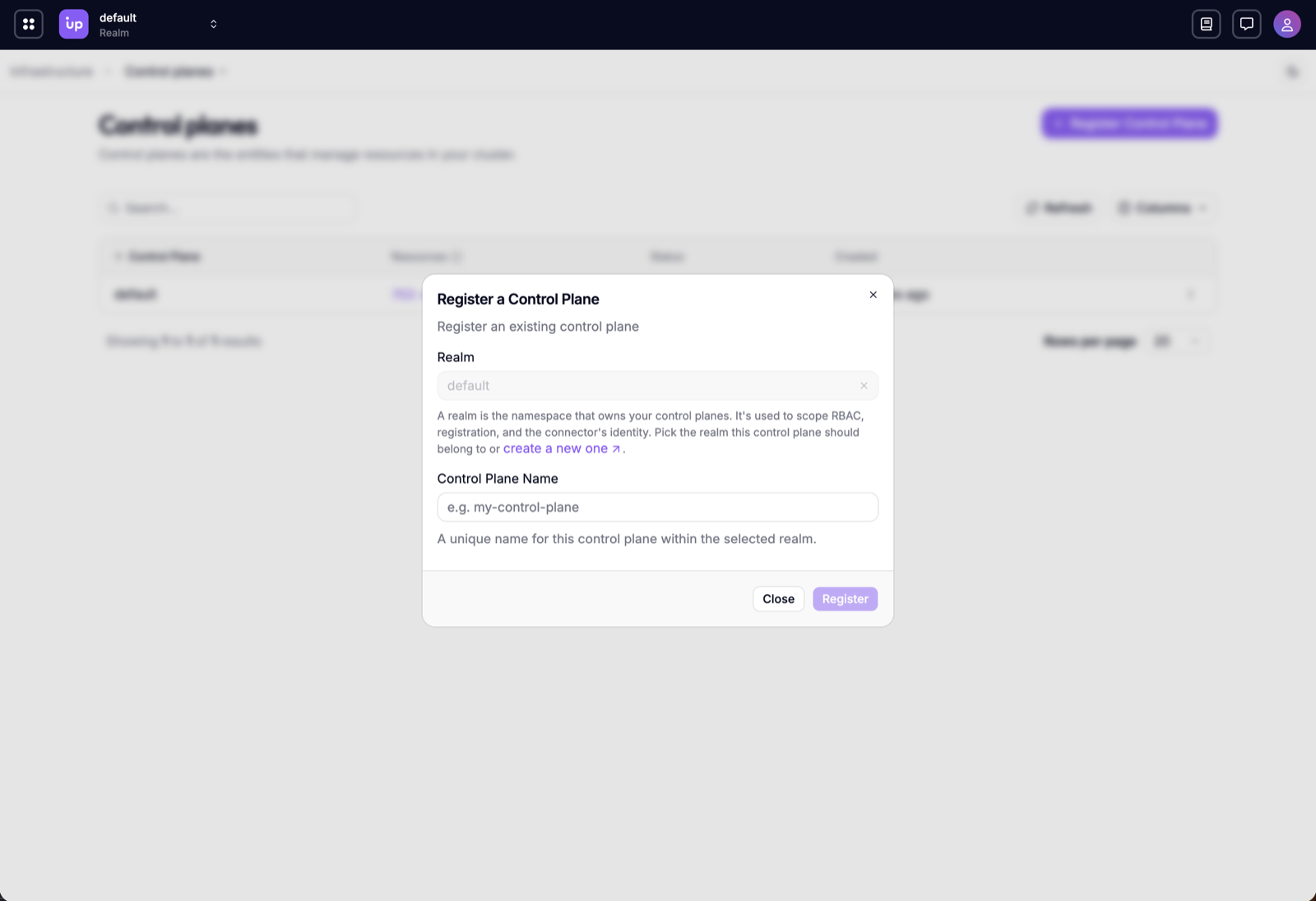
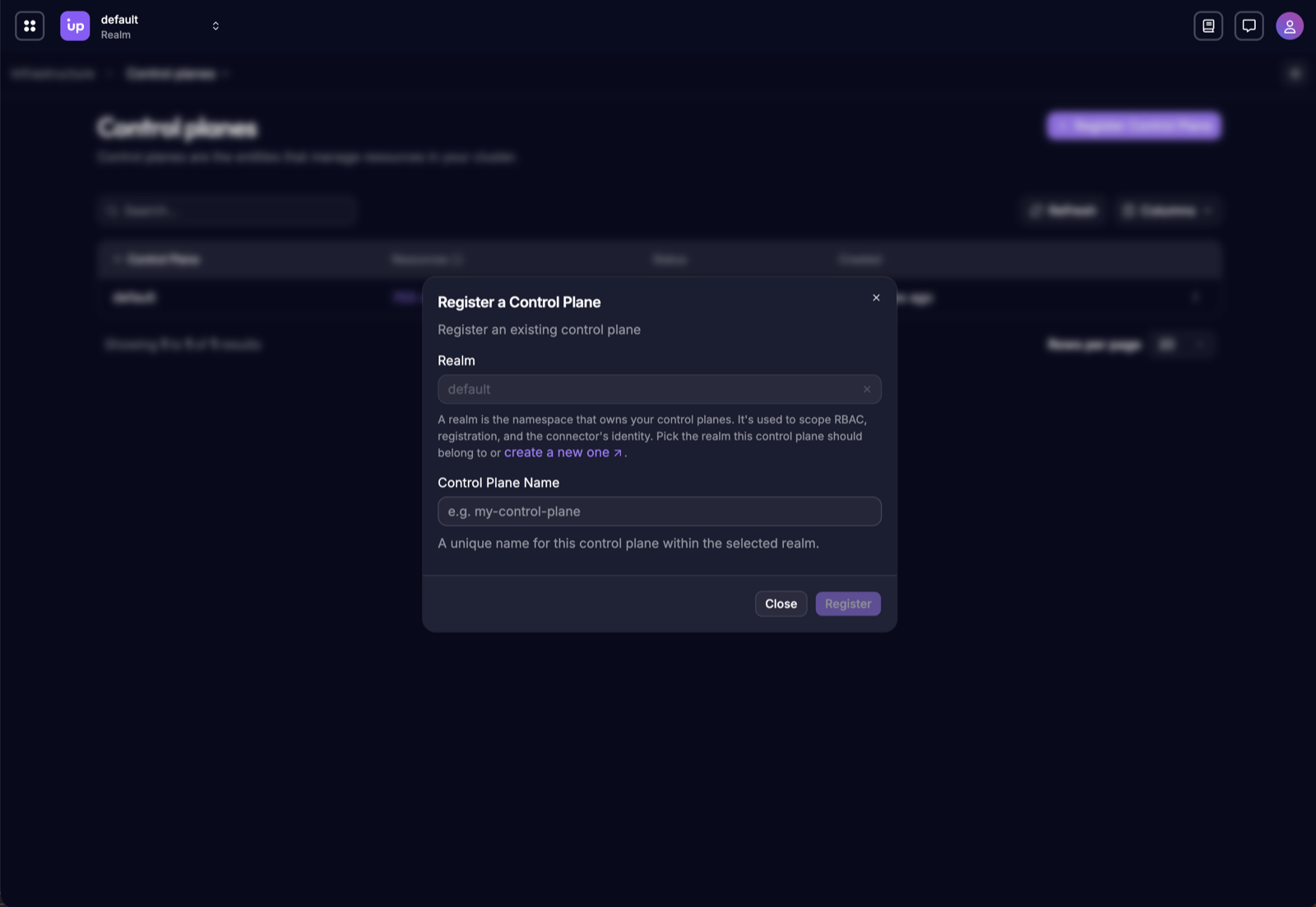
admin/admin. - Register a ControlPlane with the name
extrain thedefaultrealm. - Copy the registration token. The Hub displays it once.
- Save it for the next step:
export HUB_EXTRA_CTP_TOKEN=<paste-registration-token-here>
Install hub-connector
The connector dials the Hub at its public address. extraVolumes and
extraEnv mount the certificate you copied and point the connector's trust
store at it.
Store the registration token and write the connector values:
kubectl --context kind-hub-quickstart-extra -n hub create secret generic hub-connector-credentials \
  --from-literal=registrationToken="$HUB_EXTRA_CTP_TOKEN"

cat > hub-connector-values.yaml <<'EOF'
connector:
  hub:
    url: https://hub.127.0.0.1.nip.io:8443
  extraVolumes:
    - name: hub-ca
      configMap:
        name: hub-ca
  extraVolumeMounts:
    - name: hub-ca
      mountPath: /etc/hub-ca
      readOnly: true
  extraEnv:
    - name: SSL_CERT_FILE
      value: /etc/hub-ca/ca.crt
EOF
Install the connector:
helm upgrade --install hub-connector oci://xpkg.upbound.io/upbound/hub-connector \
--kube-context kind-hub-quickstart-extra \
--version 1.2.0 \
--namespace hub \
--values hub-connector-values.yaml \
--wait --timeout 3m
Refresh the Hub and confirm the second cluster is online.
Navigate to the resources
page. You can filter by
control plane to list only the resources in your default or extra control
plane.
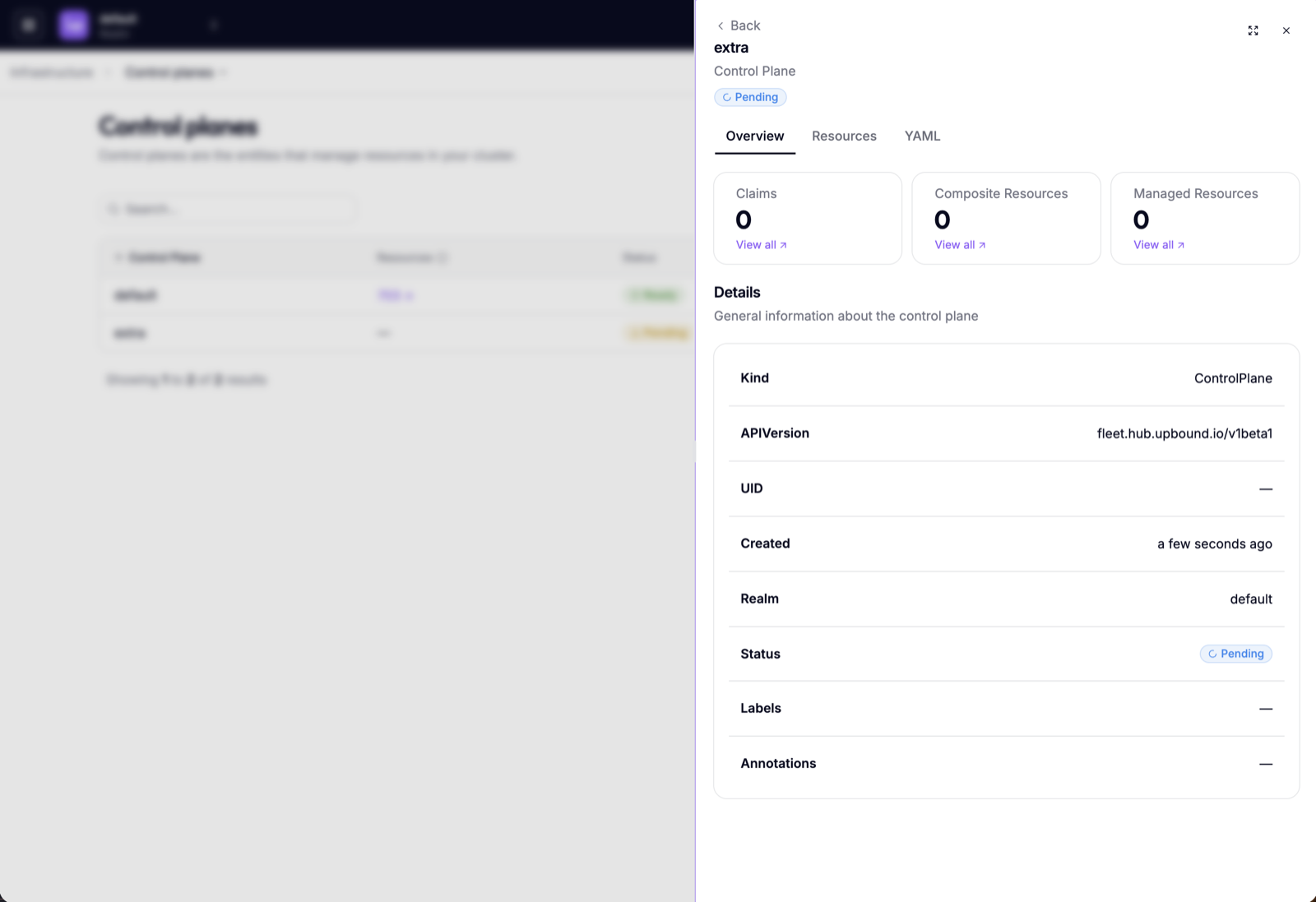
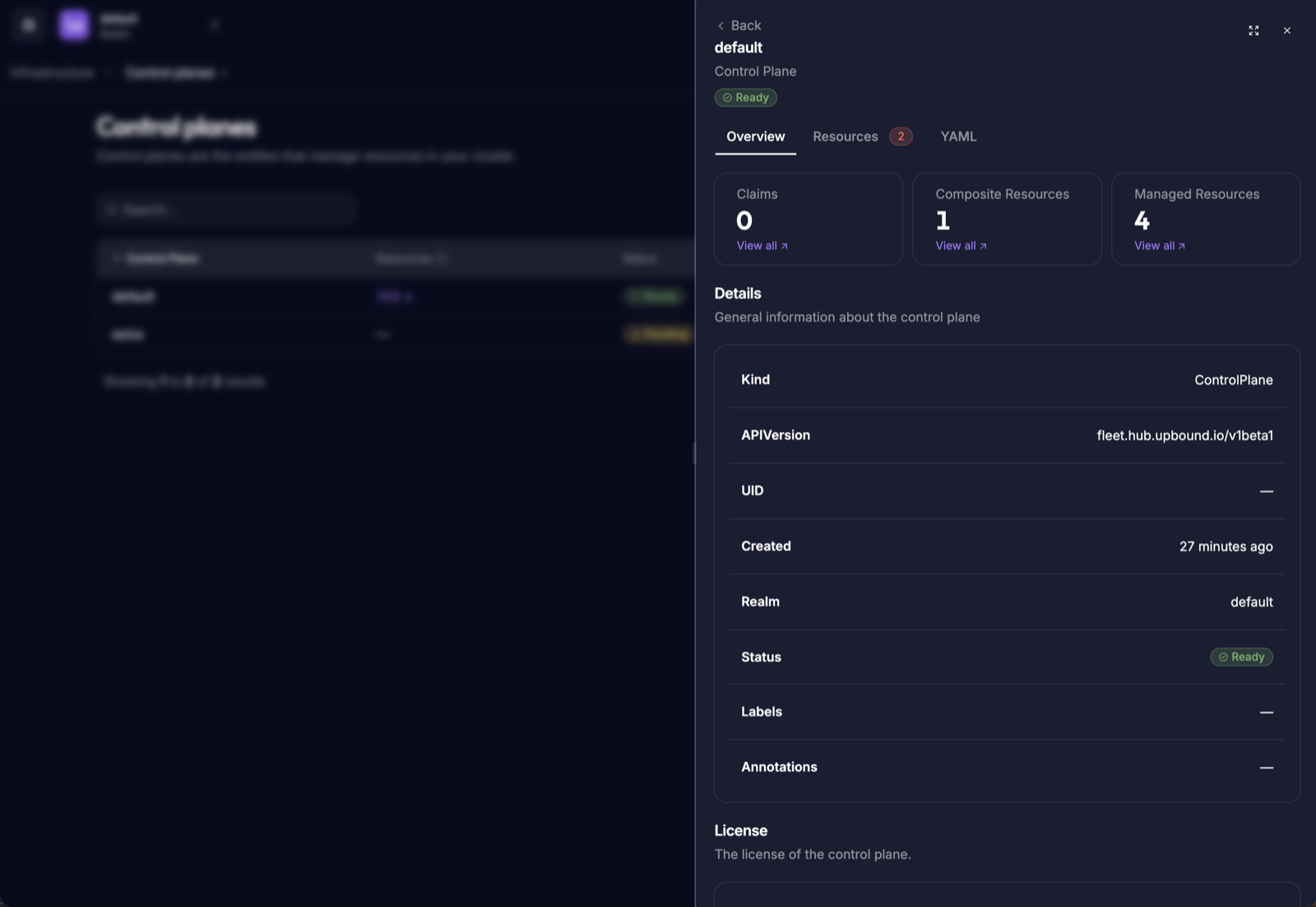
In the control planes page
lists extra next to default. It shows Pending until the connector registers,
then Ready.
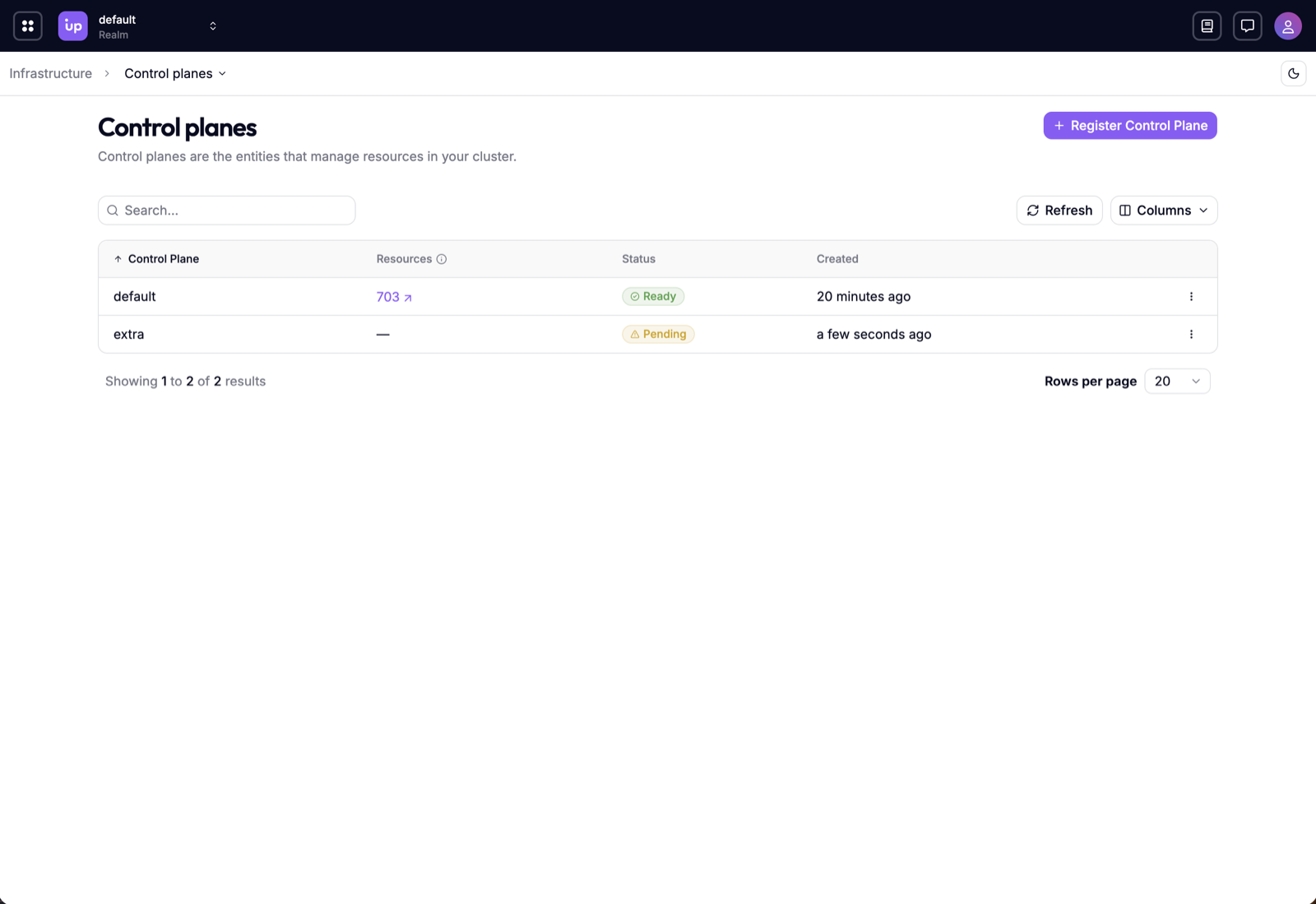
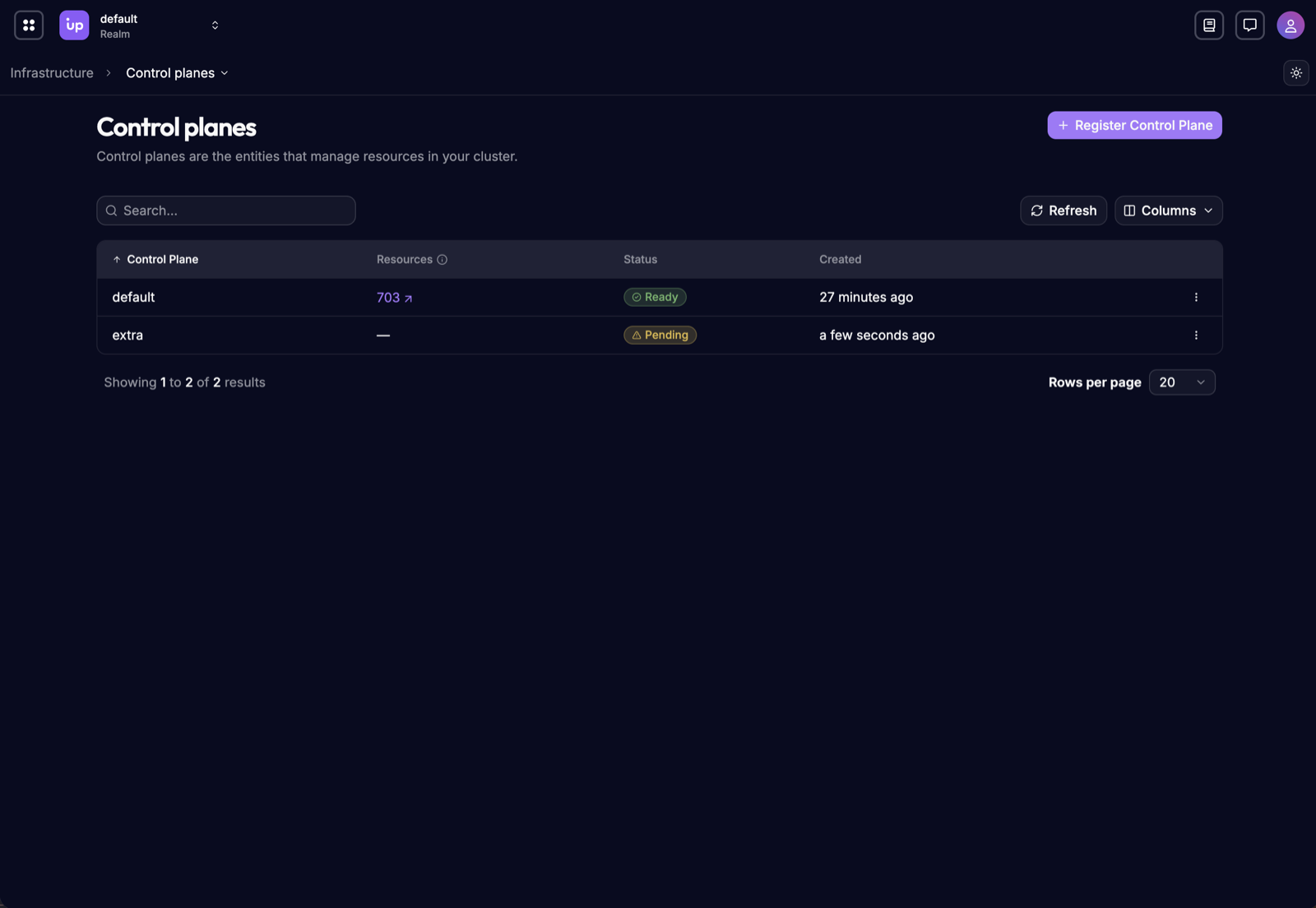
Select extra to see its resource counts and details:
If extra doesn't turn Ready, read the connector's registration log:
kubectl --context kind-hub-quickstart-extra -n hub logs deployment/hub-connector -c resolve-identity
x509: certificate signed by unknown authority means the hub-ca ConfigMap or
the connector values are missing. A timeout or no such host means the CoreDNS
rule or the hub-gateway Service isn't in place. If you restarted Docker, the
Hub node's IP address can change. Rerun the Service step with a fresh
HUB_NODE_IP.
Next steps
If you're stopping here, follow Clean up to delete what you created.
- Builders workshop for real cloud resources.
- Explore the Hub for the centralized management installation.