Browsing the Catalog
Once Catalog is enabled, the Console has a Catalog entry in the navigation sidebar and on the home page. Open either one to see every Crossplane package image the Hub has indexed, along with where each one runs and the APIs it declares.
Catalog is a preview feature. Its interface may change between releases. See the feature lifecycle.
The package list
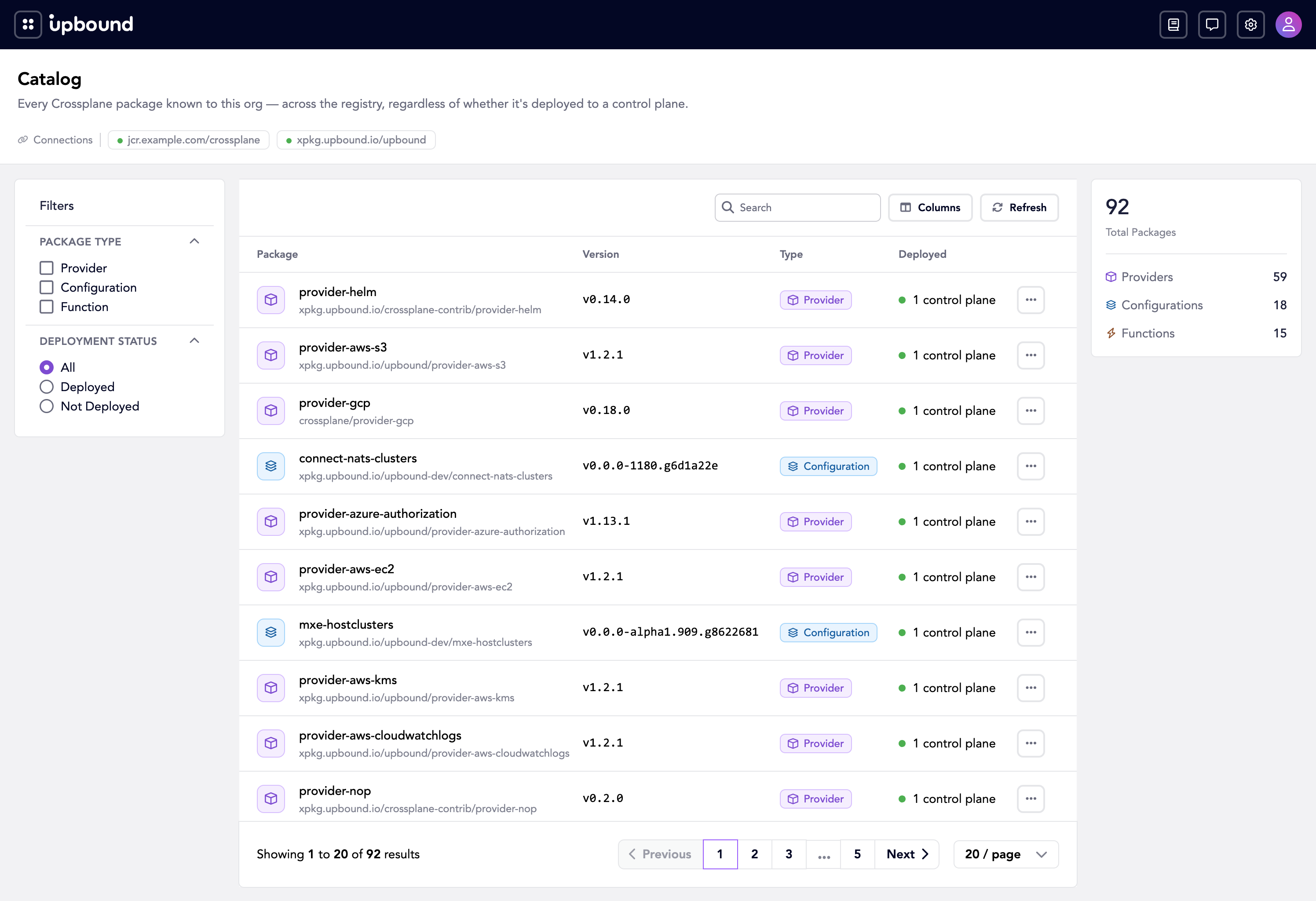
The Catalog page shows a table of every package image the Hub has indexed. For each package you can see its name, version, type (Provider, Configuration, or Function), and how many control planes it's deployed on. On larger screens, a summary panel on the right shows aggregate counts across the full catalog.
Searching and filtering
Use the search bar above the table to search packages and the API types they
declare. A query matches a package's repository path, title, and description,
along with the kind, API group, version, short names, and categories of every
type it declares. Searching bucket finds a package that declares a Bucket
kind, not only packages with bucket in their name.
A filter panel offers two facets:
- Package Type: checkboxes for Provider, Configuration, and Function. Select one or more to narrow the list.
- Deployment Status: radio buttons for Deployed or Not Deployed.
On larger screens the filter panel appears to the left of the table. On smaller screens it appears inline above the table.
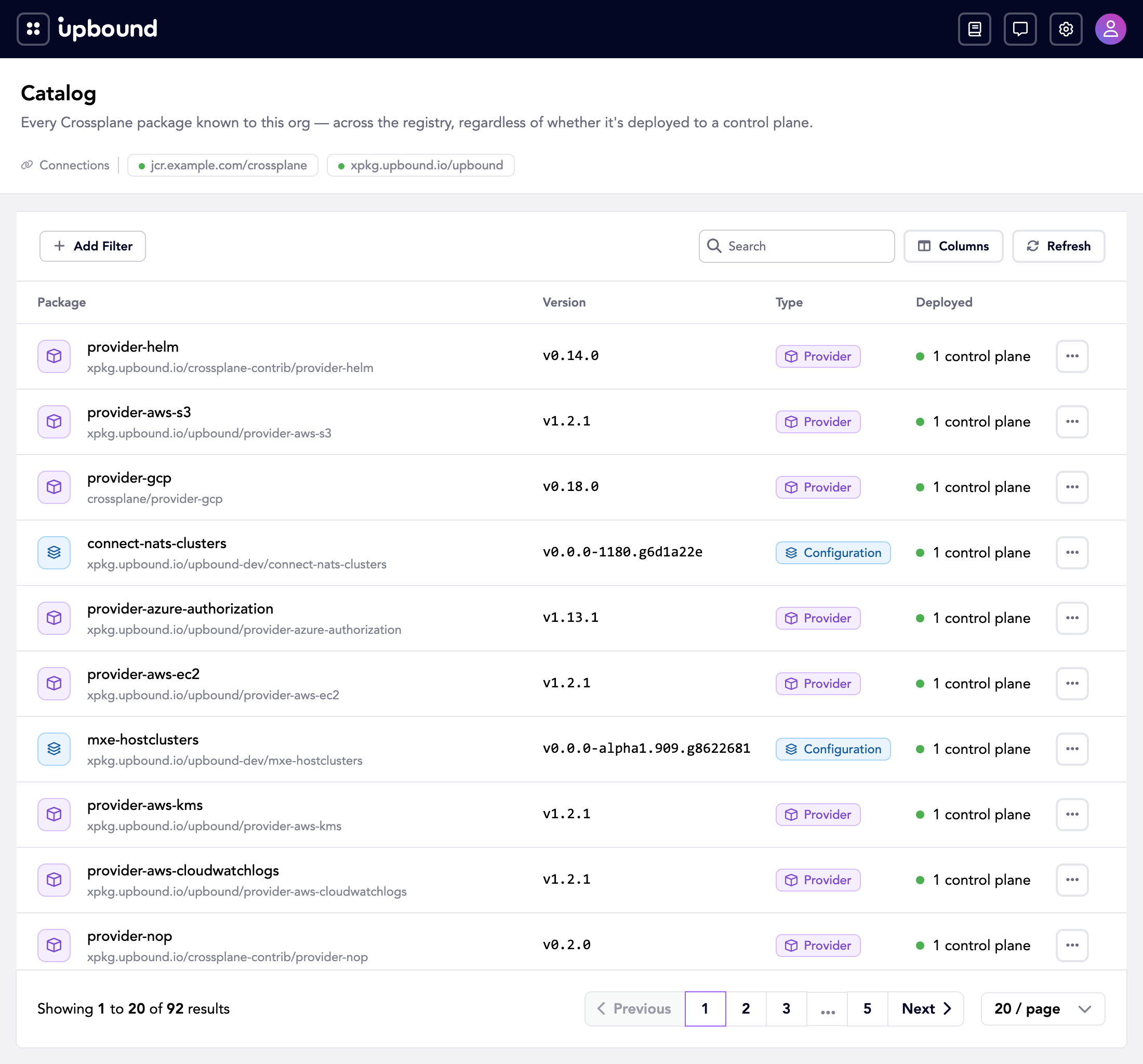
Click any column header to sort. Each sortable column supports ascending and descending order.
Understanding deployment status
The Deployed column shows how many control planes have this package installed. This count reflects your access: it only includes control planes in realms where you're authorized.
Unless you have access to every control plane in the organization, deployment counts are partial. A package showing "Not deployed" may still be running on control planes you don't have permission to view. Organization administrators see a complete picture. For details on how access scoping works, see Access management.
- "Deployed on 5 control planes": five control planes that you have permission to view run this package.
- "Not deployed": no control plane you can access runs this package. Other control planes in the organization may still have it installed.
Package details
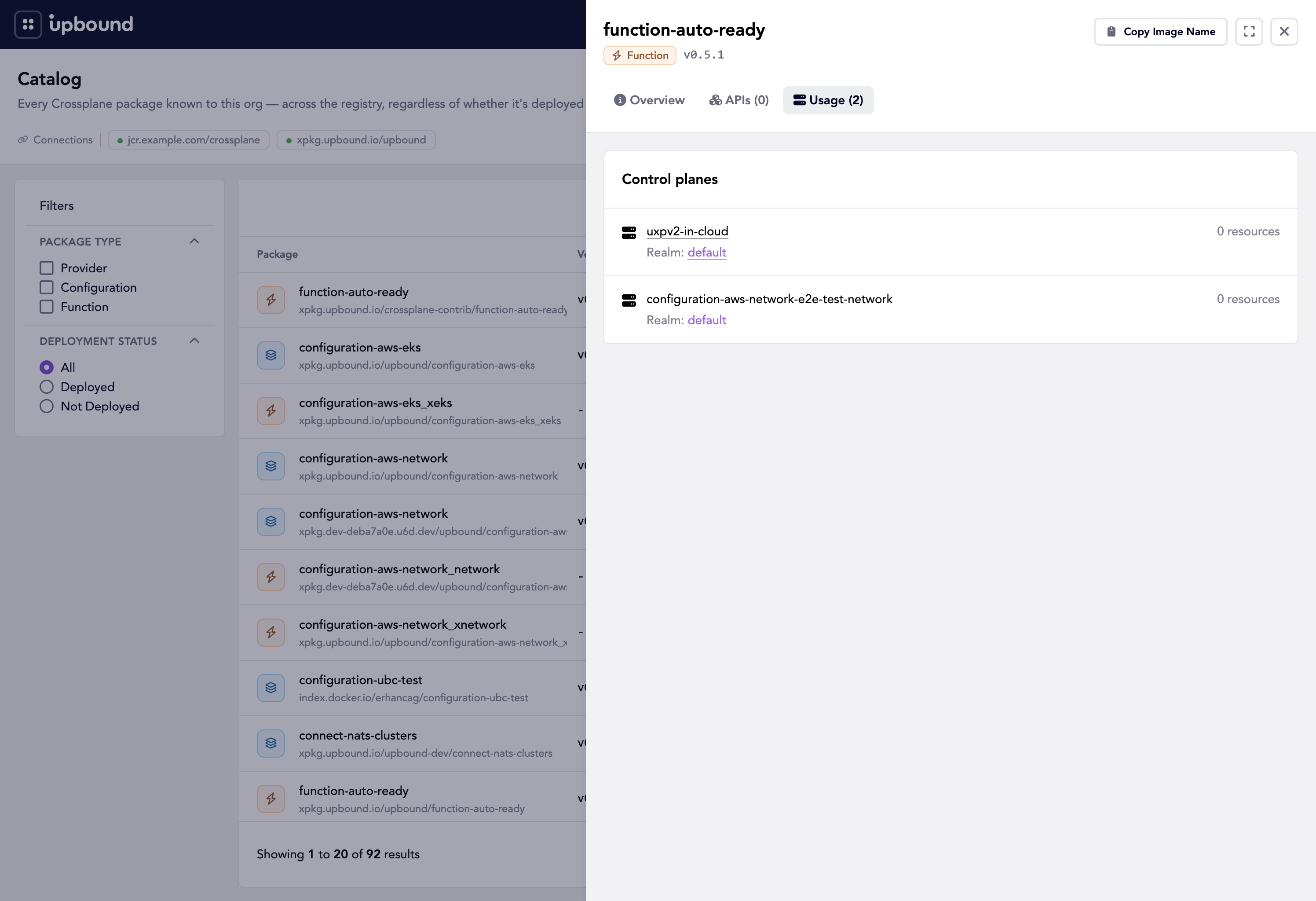
Click any row to open a detail drawer with three tabs.
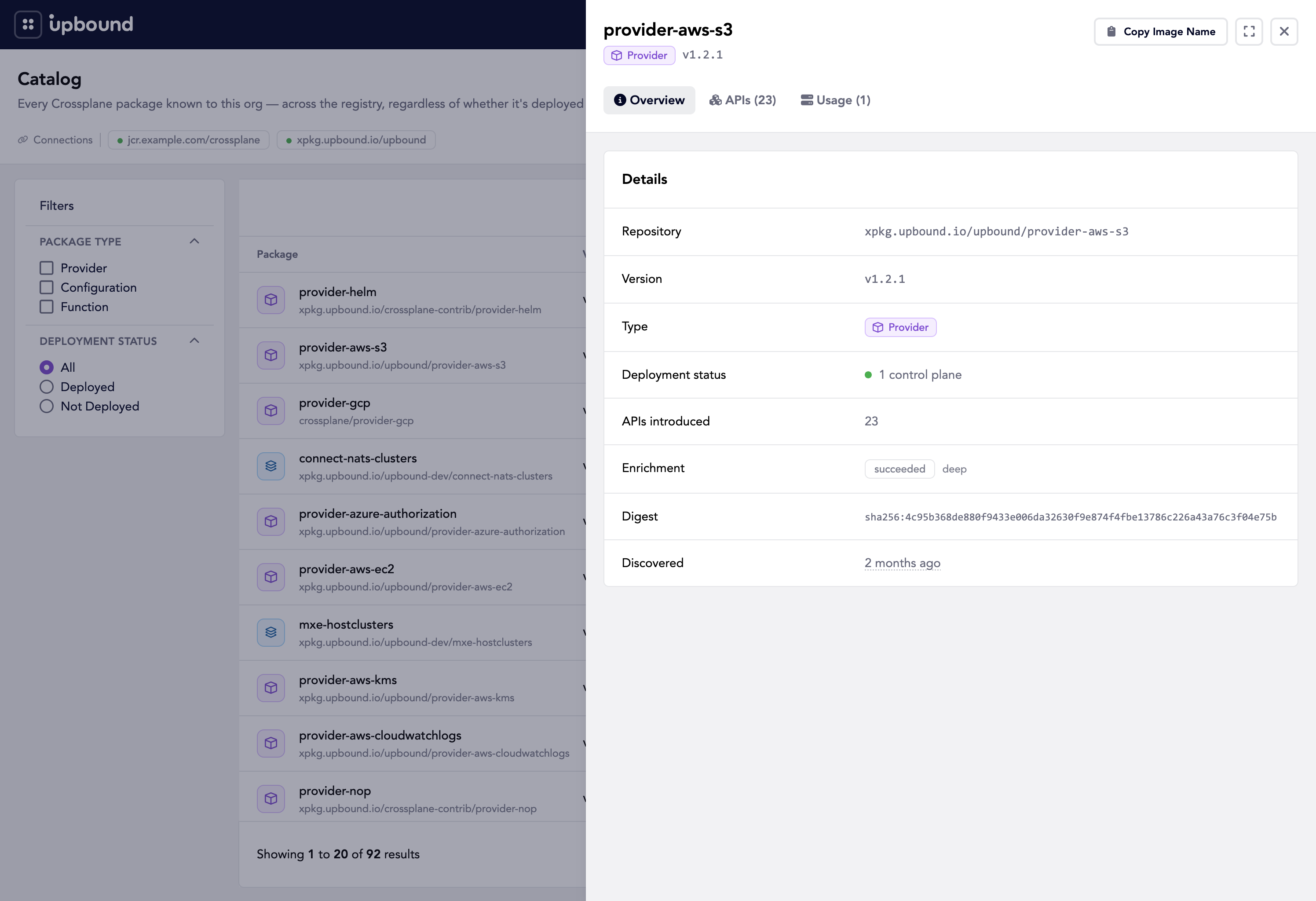
Package metadata
The first tab shows metadata for the selected package:
- Repository: the full OCI repository path.
- Version: the image tag.
- Type: Provider, Configuration, or Function.
- Deployed: the access-scoped control plane count.
- APIs: how many Kubernetes APIs (CRDs) the package declares.
- Enrichment: whether the Hub has fetched additional metadata from the upstream registry.
- Digest: the full image digest.
- Discovered: when the Hub first indexed this image.
APIs
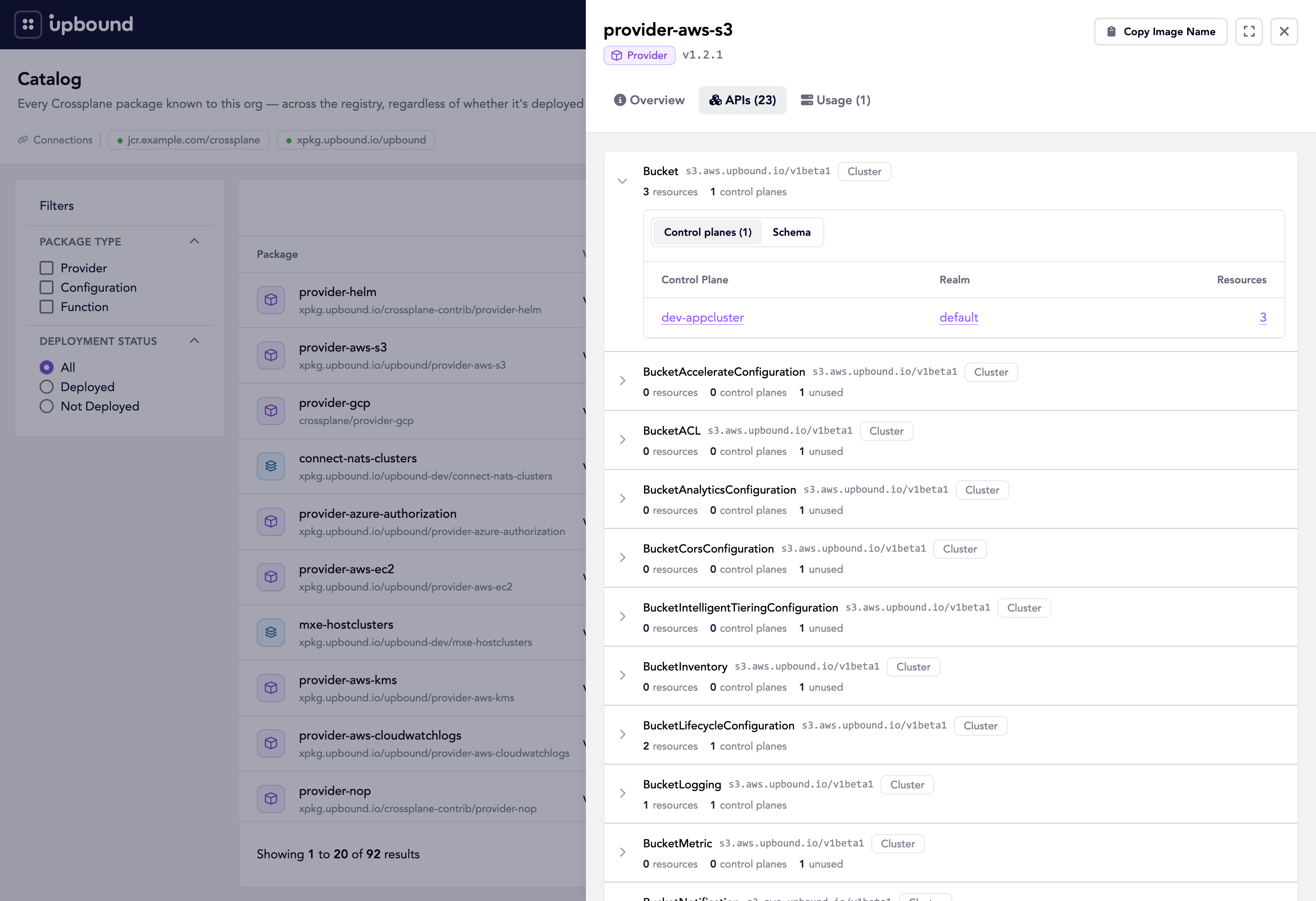
The APIs tab lists each custom resource definition the package introduces. Every entry shows the Kind, API group and version, and scope (Cluster or Namespaced).
Below each API, a summary line shows:
- Total resource count across all visible control planes.
- Number of active control planes running resources of this type.
- Number of control planes with zero resources of this type.
Expand an API to see two sub-views:
- Control planes: a table of each control plane running this API, its realm, and its resource count.
- Schema: the OpenAPI schema for the resource, rendered as YAML.
Usage
The Usage tab lists the control planes where the package runs. Each entry shows the control plane name, its realm, and a resource count.
When a package isn't on any control plane you can access, the tab shows:
This package isn't installed on any control plane you can access.
Registry connections
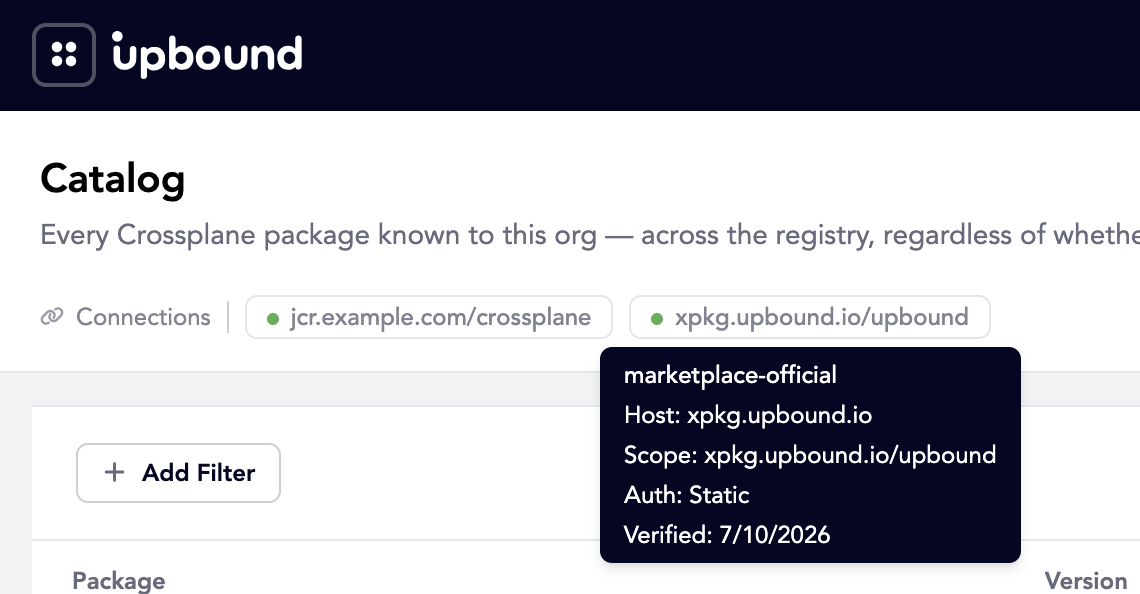
At the top of the Catalog page, badges show each connected registry source. A colored dot indicates connection health:
| Dot color | Meaning |
|---|---|
| Green | Healthy—the connection verified successfully. |
| Red | Error—the last verification failed. |
| Gray | Unknown—no verification has run yet. |
Hover over a badge to see additional details such as the display name, host, scope, authentication method, and any error information.
To add or manage connections, see External registries.
Good to know
- Deployment counts reflect your access. Counts and control plane lists only include realms you're authorized to view. See Understanding deployment status.
- Large packages limit resource links. When a package declares more than 30 API types, the Console disables resource count links in the Usage tab. A hover label explains why.
- Data refreshes every 30 seconds. Use the Refresh button for an immediate update.
- Catalog requires a feature flag. The Console shows the Catalog page only when the Catalog feature is enabled.